How to Organize Your AI Chats: Projects, Pins and Color Tags in Risphai
Stop losing important AI chats. Group conversations into projects, pin what you use most, add color tags and filter your history by project in Risphai.
By Risphai
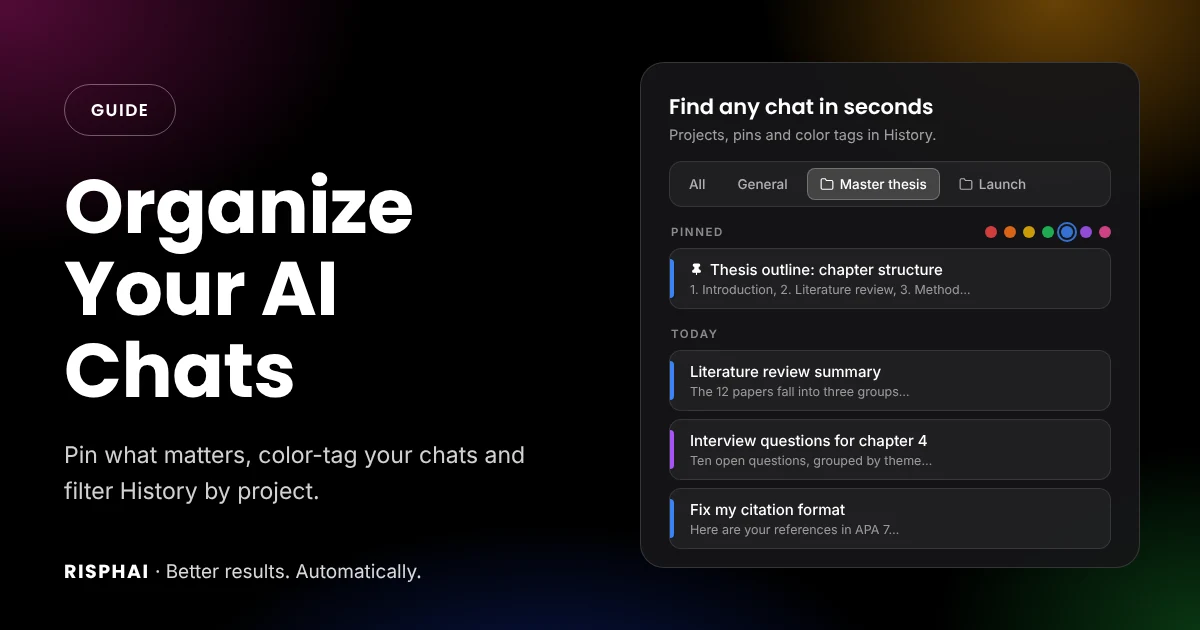
Projects, pins and color tags keep your AI chats easy to find.
To organize your AI chats, give every big goal its own project, pin the few chats you use every day and add color tags so you can see the status of each one at a glance. In Risphai, the History page brings it together: switch between All, General and each of your projects, filter by color and search inside one project. Pins and color tags are free on every plan.
AI chats pile up fast. A question about your thesis on Monday, a launch plan on Tuesday, a recipe on Wednesday, and by Friday the chat you need is somewhere on page three. This guide shows a simple system that keeps everything findable, in about five minutes.
Why AI Chats Get Messy
Most AI apps show your chats as one long list, newest first. That works for ten chats, not for two hundred. A few things make it worse:
Everything is mixed together. Work, studies and personal questions sit in the same list.
Important chats sink. The chat you return to every day gets pushed down by quick one-off questions.
Titles all look alike. "Summary of the meeting" and "Meeting summary" don't tell you which project they belong to.
Context gets lost. You upload the same document again and again because the chat that had it is hard to find.
Good organization fixes all four with a few small habits, not a lot of admin.
Your Tools for Organizing Chats at a Glance
Tool
Use it for
Where to find it
Projects
Grouping chats and files for one goal, like a thesis, a client or a launch
Projects page, or Add to Project in a chat's menu
Project tabs
Seeing only the chats from one project
History, below Conversations
General
Seeing chats that aren't in any project
History, next to All
Pins
Keeping the chats you use most at the top
Pin in a chat's menu
Color tags
Marking status or type, like urgent, in progress or done
Color tag in a chat's menu
Color filter
Showing only chats with one color
The color dots in History
Search
Finding a chat by its title or what was said
History, also inside one project
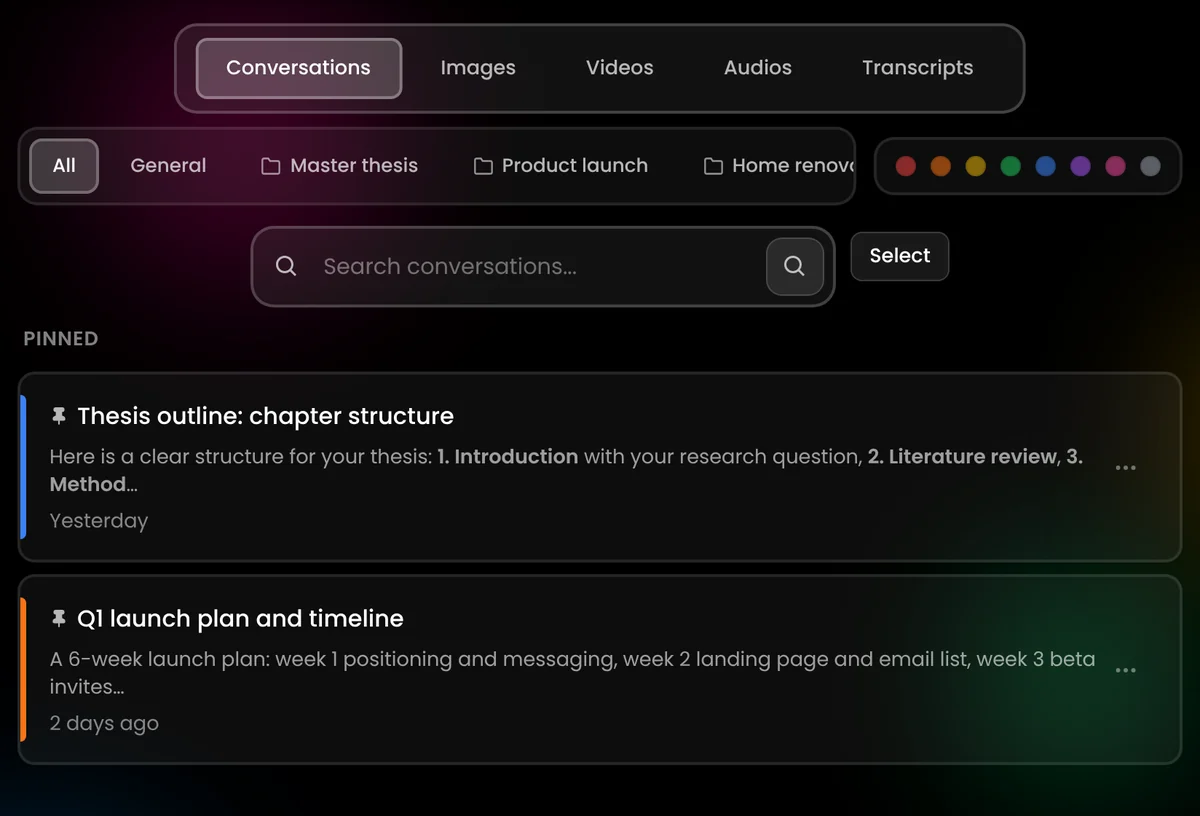
History with project tabs, the color filter and pinned chats at the top. Example conversations.
Step 1: Create a Project for Each Big Goal
A project is a home for one goal. Good candidates are anything you'll work on for more than a few days:
Studies: a thesis, a course or an exam
Work: a client, a product launch or a report
Personal: a home renovation, a trip or your finances
Open the Projects page, create a project and give it a clear name. Then add the material you'll keep coming back to: notes, documents like PDFs, Word files and slides, and images. Each project holds up to 100 files.
Here's what makes projects more than folders: Risphai uses the project's files as context in the chats linked to it. Ask "Does chapter 2 match the outline?" and Risphai can answer from your outline, without you uploading it again.
Step 2: Add Your Chats to the Right Project
You can add a chat to a project in three ways:
From History: click the three dots on a chat and choose Add to Project.
Many at once: in History, press Select, pick the chats and choose Add to Project.
From the chat itself: open the chat's menu at the top and choose Add to Project.
To use a project's files while you write a message, type / in the chat box and pick the project under Projects.
Chats you don't add to a project stay in General. That's fine for one-off questions like a recipe or a quick translation. You don't have to file everything.
Step 3: Switch Between Projects in History
Below Conversations in History, you'll find a row of tabs:
All shows every chat.
General shows the chats that aren't in a project.
Each project has its own tab and shows only its chats.
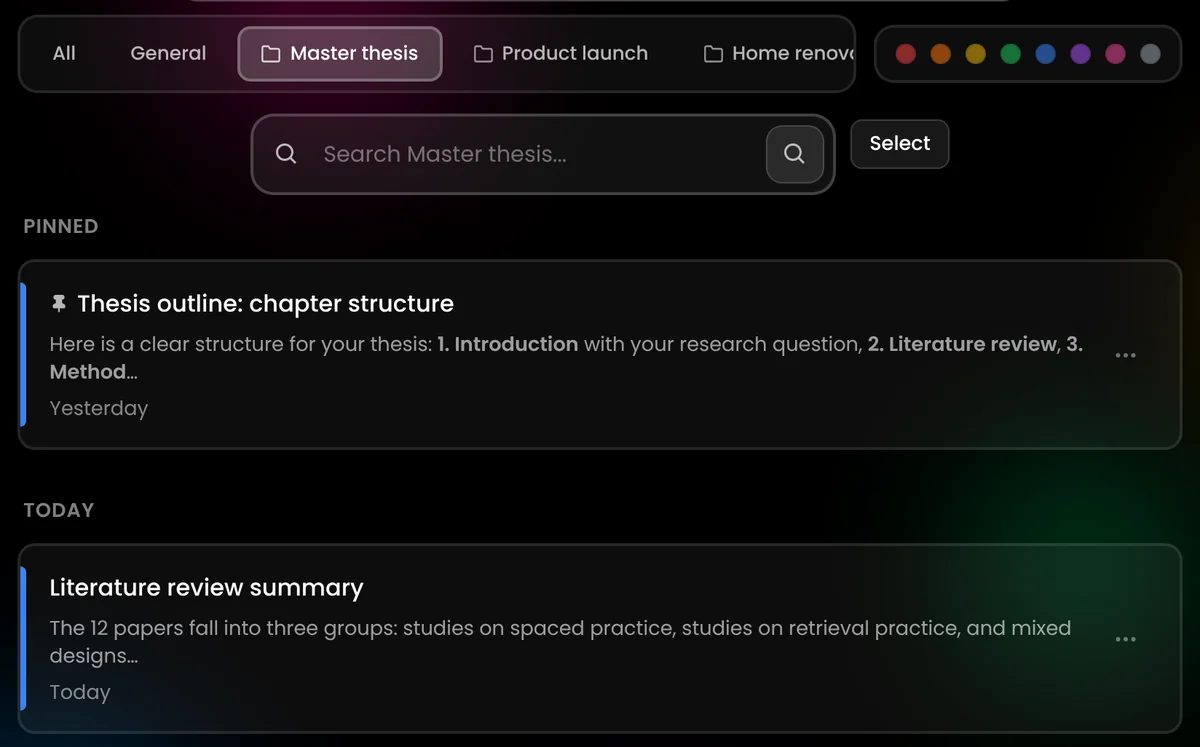
When you choose a project, the search box searches only that project, so "citation" finds the chats from your thesis, not the ones from work.
Only the chats from one project, with its pinned chat on top. Example conversations.
Step 4: Pin the Chats You Use Every Day
Some chats are worth keeping close: the outline you check before every writing session, the plan you update each week or a long chat with all your notes on a topic.
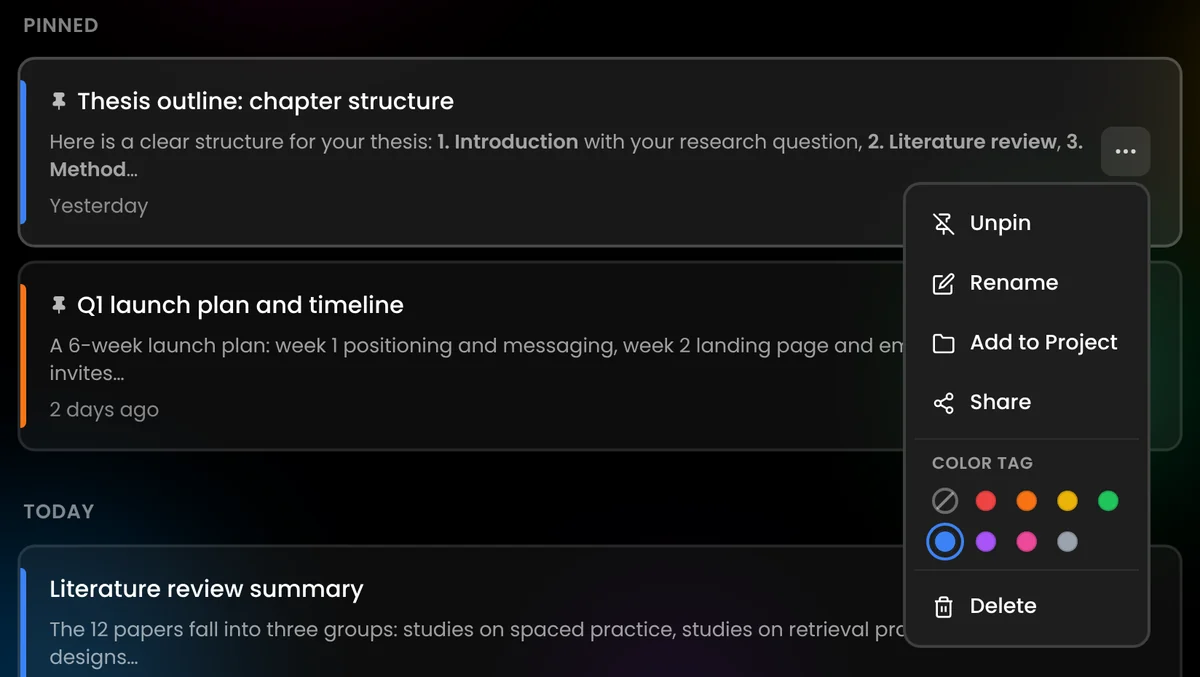
Click the three dots on a chat and choose Pin. Pinned chats appear at the top of History under Pinned, above Today and older chats. They stay pinned when you switch to a project, so each project view shows its own pinned chats first.
Keep your pins short. Three to five pinned chats are easy to scan. Twenty pinned chats are just another long list.
Step 5: Add Color Tags for Status or Type
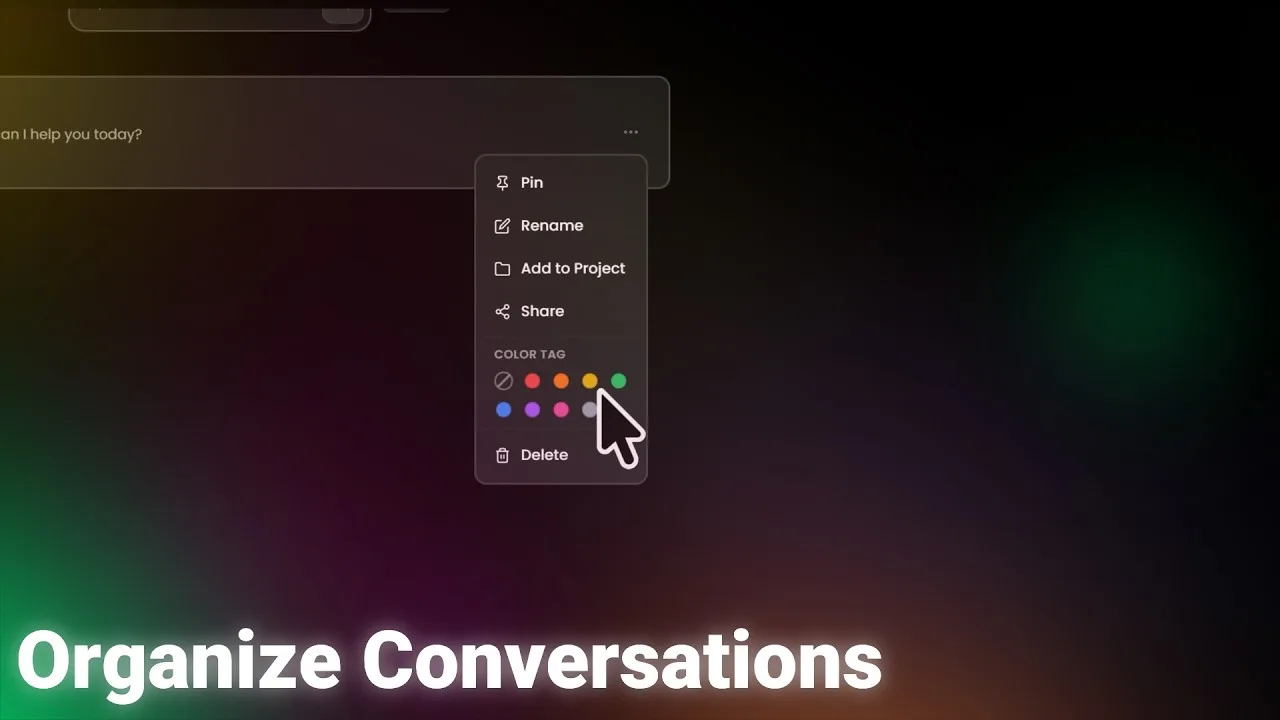
A project tells you where a chat belongs. A color tag tells you what state it's in. Open a chat's menu and pick one of eight colors under Color tag. The color appears as a stripe on the left of the chat, so you can scan the list at a glance.
Pin and color-tag a chat from its menu in History.
The colors mean whatever you want them to mean. If you'd like a starting point, this system works for most people:
Color
Meaning
Example
🔴 Red
Urgent or needs a reply
"Answer the client's questions"
🟡 Yellow
In progress
"Draft of chapter 3"
🟢 Green
Done, keep for reference
"Final launch checklist"
🔵 Blue
Research and reading
"Literature review summary"
🟣 Purple
Ideas for later
"Headline ideas"
To see only one color, click its dot next to the project tabs. Click it again to show all colors. The color filter works together with the project tabs, so you can show, for example, only the urgent chats in one project.
A Simple System for Every New Chat
You don't need to think hard about where a chat belongs. Ask yourself two questions when you start one:
You
Make a simple flowchart that helps me decide how to organize a new AI chat.
Risphai
A live flowchart, rendered like in the Risphai chat. The steps were written for this article.
Once a week, spend two minutes in General: add the chats that turned into something bigger to a project, update their colors and unpin what you're done with.
Example Setups You Can Copy
For a student
One project per course or for your thesis, with slides, readings and your notes
Pinned: the thesis outline and your study plan
Colors: blue for readings, yellow for drafts, green for finished chapters
For a freelancer or consultant
One project per client, with the brief and their brand guidelines
Pinned: the chat for each active client's current task
Colors: red for "waiting on me," yellow for "in review," green for "delivered"
For your personal life
Projects for a renovation, a trip or your budget, with quotes, bookings and receipts
Pinned: the trip itinerary while you're traveling
Colors: pink for travel, green for done
More Tips for a Tidy History
Rename chats with something you'll recognize later. "Lisbon trip, day plan" beats "Itinerary help." Use Rename in the chat's menu.
Delete what you don't need. Select several chats at once with Select and delete them together.
Use incognito for one-offs. Incognito chats aren't saved to your History, so they never clutter it.
Share a single chat with a link when someone else needs to see it. Images, videos and audio are hidden in shared chats.
Free vs. Paid Plans for Organizing Your Work
You can use everything in this guide on the Free plan. Paid plans give you room for more projects and more files:
Free
Paid plans (Lite, Standard, Premium)
Pins, color tags and History filters
Yes
Yes
Projects
2
20, 40 or 100
Files per project
Up to 100
Up to 100
Storage for your files
100 MB
10 GB, 20 GB or 50 GB
Credits per month
100
3,000, 7,500 or 20,000
Scheduled tasks
1
10, 20 or 50
More capable models
No
Yes
Choose the model yourself
No
Yes
Voice mode
No
Yes
Quick and Deep Research
No
Yes
Two projects are enough to try the system with one goal at work and one at home. If you want a project for every course, client or plan, a paid plan gives you 20 to 100. Current prices are on the Pricing page.
Start Organizing Your Chats
Pick the goal you're working on this week and create a project for it. Add its chats, pin the one you'll open tomorrow and give the rest a color. Start free with 100 credits every month, no credit card needed, or compare plans on the Pricing page for more projects and storage.
Want to get more out of each chat, too? Learn how model routing picks a suitable model for every request, or turn your project files into quizzes and flashcards with Risphai's AI study tools.
Give every big goal its own project, add the chats that belong to it and keep everything else in General. Then pin the few chats you open every day and add color tags for status or type, such as red for urgent and green for done. In Risphai, the History page lets you switch between All, General and each project, and filter by color.
What are projects in Risphai?
A project is a space for one goal, like a thesis, a client or a product launch. You add notes, documents and images to it, up to 100 files per project, and link the chats that belong to it. Risphai uses the project's files as context in its linked chats, so you don't have to upload them again for every question.
How do I pin a conversation?
Open History, click the three dots on a conversation and choose Pin. Pinned conversations stay at the top of History, above Today and older chats, and also at the top of each project view. Choose Unpin in the same menu to remove the pin.
Can I color-tag conversations?
Yes. Open a conversation's menu in History and pick one of eight colors: red, orange, yellow, green, blue, purple, pink or gray. The color shows as a stripe on the conversation, and you can filter History by color with the dots next to the project tabs.
How do I see only the chats from one project?
Open History and choose the project's tab below Conversations. You then only see that project's chats, with its pinned chats at the top, and the search only looks inside that project. Choose All to see every chat again.
What does General mean in History?
General shows the conversations that aren't in any project. It's a quick way to find one-off questions or to spot chats you still want to add to a project.
How many projects can I create?
The Free plan includes 2 projects. Lite includes 20, Standard 40 and Premium 100. Each project can hold up to 100 files, and files count toward your plan's storage: 100 MB on Free and 10 GB, 20 GB or 50 GB on paid plans. Current prices are on the Pricing page.
Are pins and color tags free?
Yes. Pinning, color tags and the project and color filters in History are available on every plan, including the Free plan, and they don't use credits.
Does Risphai use my conversations to train AI models?
No. Risphai doesn't use your conversations or personal data to train AI models. Incognito chats aren't saved to your History at all. Details are in the Privacy Policy.
organize ai chatsai chat organizationai projectsai project managementpin conversationscolor tagsai chat historyai workspaceproductivityguide